


You've just received your two way radio, taken it out of the package, and now you want to get it operational. You plugged in the programming cable, downloaded the driver, set up the software, and connected the cable the radio to program it.
There is just one small glitch. When you run the program, the software can't seem to find the radio. It can't connect to the cable. It can't even find the COM port. What gives?
First, don't panic or blow a fuse. There are several devices in the mix and multiple connections here, plus an entire computer system. It could be anything. Before you pack up all the new stuff and send it back to the dealer, find out what the real problem is. It may not be as bad as you think. It may even be quick and easy to resolve.
Here are the steps to troubleshoot if the programming software for your two way radio does not recognize the COM Port or the programming cable purchased from Buy Two Way Radios.
Step 1. Verify the programming cable is installed correctly.
- If using our programming cable and it is installed correctly, proceed to Step 2.
- If programming cable is not installed correctly, re-install the cable driver.
Step 2. Verify the COM Port number assigned to your programming cable.
- If you are running Microsoft Windows, go the the Device Manager and click on Ports (COM & LPT).
- Note the number of the COM port assigned to your cable.
Step 3. Verify the correct COM Port is recognized and listed as active in the programming software.
- If the COM port assigned to the programming cable is listed as active and available, choose it and skip to Step 5.
- If the COM port assigned to the programming cable is NOT listed as available, go to Step 4.
Step 4. Assign another COM Port to the USB programming cable.
- Open the Device Manager, go to Ports (COM & LPT) and right click on the listing for the USB programming cable.
- Click PROPERTIES in the pop-up menu.
- Click on the PORT SETTINGS tab.
- Click the ADVANCE button.
- Click the drop down list next to COM Port Number: and choose a COM Port below the number 10 that is not in use.
- Click OK to save the setting, then click OK again to exit the Communications Port (COMX) properties window.
- Note the new COM Port number assigned to the USB Programming Cable and go back to Step 3.
- If a new COM Port number was assigned to the cable and it is still not recognized by your programming software, skip to Step 6.
Step 5. Run or close and restart the programming software.
Step 6. If the program does not recognize the programming cable or the COM Port assigned to it, refer to the manufacturer of the programming software.
If you are using CHIRP programming software, go to the CHIRP web site at http://chirp.danplanet.com/projects/chirp/wiki/Home and download the latest daily build of CHIRP or report the issue to CHIRP.
If these instructions are followed correctly, the programming software for your radio should be able to recognize the correct COM port and access your programming cable.



Ran into the same problem. I wanted to program a Tidradio TD-H6 and got the runaround from Chirp. Its not Chirp's fault and I know the cables are OK because it just so happens that I have a Baofeng UV-82 that has an identical programming cable and that works 'just fine'. I suppose I'll have to end up returning the radio because its quite obvious that there's a firmware issue which isn't going to be easily resolved by a customer.
I used to write product software, I've been doing it for decades, and for better or worse this kind of serial communication to monitor/program/whatever used to be a common product feature. I've had to write a lot of these ad hoc serial protocols and I should say that nobody ever let me get away with this kind of hit and miss "give the customer the runaround" level of quality. So I've got a pretty low tolerance when its spring on me. We should have moved on by now anyway -- programming cables and the like have been obsolete for many years -- both charging and communication should be done over USB. While we're about it we need to retire these obsolete headphone/microphone jacks -- whether the radio manufacturers like it or not the computer and phone people have established a de-facto standard which they need to adopt.
Can’t you program DB20-G from the face of the radio?Also how do you program the D 777 tones into it?
I have an MD 750 radio, and my computer is Windows 11. I downloaded the drivers and software, but the software refuses to recognize and connect to the radio...so i can't program in all my repeaters and frequencies...very frustrating
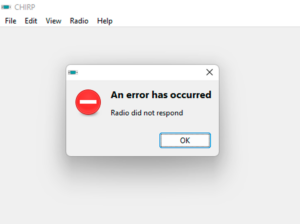
I have a Dell laptop running Windows 11 and have tried in vain to connect the Yaesu programming cable to program my FT-65R. Followed the steps in Step #4 and when attempting to download from the radio I get "An error has occurred
could not open port COM4: [Error 433] A device which does not exist was specified."
I seems that the device manager shows Ports (COM & LPT): PL2303TA DO NOT SUPPORT WINDOWS OR LATER, PLEASE CONTACT YOUR SUPPLIER
I am stymied. I bought the cable from Yaesu. Did I get the wrong cable?
Hello,
Thank you for the informative article. When I try to change my cable from port 10 to another lower number port, like you mention, they all show that they are in use. What do you do in this case?
Thanks!
That depends. Are you using a PC running Windows? If so, which version of Windows is installed? What other devices are connected to it? Are all of them actively used? What programming cable and software are you using? We need more information.
Hi! I just bought an AT-779UV. I've installed the program, the COM ports are identical in the device manager and the program, I ''read from the radio'', it scanned the radio, but no other channel appeared on the main page's spreadsheet, only the two that were previously there; is that normal for a brand new device? Also, I was wondering if you had any advices or references regarding antennas and or batteries, because I'm planning to have a kind of setup to be able to bring my radio not only in my car, but also with me, for example, on hikes in the woods or in the city. I'm a newbie and would appreciate any useful infos.
We do not carry that that brand, so we don't have a lot of information on it, however it does sound as if the programming software either did not actually read the radio or the radio had nothing programmed into it out of the box other than two default frequencies.
As for antennas, we have a number of options available that should work for a mobile rig in a vehicle or for use as a base station. You can find them at https://www.buytwowayradios.com/accessories/antennas.html.
Just purchased Tidradio TD H-5 Radios, software will not read or write to radios. Using laptop with Windows 8.1.
We do not carry that brand, so we are not familiar with it. You many need to contact the manufacturer for support.
I have an AT-779UV. I installed the software and confirmed COMM Port 3 is working with it. But when I try to read the radio I get an error message; "Read Data Failed." Do I have a bad cable?
We need more information. Are you using the programming software provided by the manufacturer, or third party software such as CHIRP?
"Try Updating port drivers in Device manger and assigning it to the Cables port.
I'm trying to program an APX 6000 but when I plug the radio into the computer using the programming cable (which I've used many times), the radio begins to cycle off and on repeatedly. It won't stay on long enough to read the radio. Any ideas?
Good procedure. Possible fix for Windows 10 COM Port. An update to Windows 10 Com Port may be need to recognize the USB communction devices in device manage. Then picked a clear channel on my Baofeng UV-5RA and turned the volume on full and followed the directions from the CHIRP software. Once the USB device is updated in Windows the current version of CHIRP "Automatically" recognized or configured COM3. Had to reseat the "new" programming cable a couple of times to get the thing to click and then cloning work perfectly. Thanks for updating this Blog. AA0EI (Scott) 73's
We recently upgraded our operating system and I can't find where to change the port settings. Anyone have an update on how you can change the port settings?
Which operating system do you have?
Have MTM5400, pc cannot recognize it via usb
This seems to be a Motorola airband radio that we do not carry, so we are not familiar with this model. What operating system are you using on your PC? Are you using the genuine branded Motorola cable intended for your radio or is it made by a third party? Are you using the programming software intended for this make and model radio? If you followed all of the instructions in the article step by step and your radio is still not recognized by your computer, you may need to contact the dealer or manufacturer in your country or region directly for support.
You co not have an Anytone 779UV listed. Could I use the programme for the Alinco 778UV?
We don't list any specific radios in the article. Are you referring to the list of compatible radios on the CHIRP web site? If so, we have no control over that, as we are not the developers of the CHIRP program. It's a third party site. If you are asking if you can use one radio by choosing another radio on their compatibility list, this is a question you will need to ask the developers at CHIRP.
I have this cable, HKN6184C (For Motorola TETRA MTM800E) and having this GMWN4298B (NGCH), i cannot get this NGCH to turn on, as in, it will not flash with the red lamp in front, the computer do not recognise the radio, neither will it turn on the NGCH, need help
We do not carry this Tetra radio or programming cable so we are not familiar with it. You may need to contact Motorola in your country or region for support.
I have a problem with programming Motorola radius GP300.
I have installed the driver correctly (USB to Com -RS232), also there is no problem in the CPS (under windows). But the last moment before completion of the device reading, an error pops up and says: "check your RIB connection". Even the green light on the panel blinks before the error message.
I would be grateful if you help me with that.
We do not carry the GP300, so I have no information on it, the programming cable or software. However, based on the error, I would go through the entire list of steps in the article to be sure nothing was missed. If you are still unable to resolve the issue, you may need to contact the dealer or Motorola directly for support.
You could also ask in our Two Way Radio Forum. It's an international community, and there may be members who are familiar with the GP300 and may be able to help you figure it out.
I have a bj-318 and a USB cable using the 232R chipset. I installed the cable with the VCP ( virtual com port ) driver and set the com port to 7.
I have the software from the manufacturer and I run it and it seems port 7, and I click read radio then read from the box that pops up, and after 2 seconds it says Write Error !
Does anyone know why it is doing this ?
The drivers installed correctly and the software sees the port.
Are there specific settings needed under the com port in device manager ?
Flow control ? Stop bit ? Data rate ? Etc ..
Anyone else see this error on a BJ-218 ?
I tried writing to the radio, got the same error
Any ideas ?
Thanks
Bill
KC2OVX
If your computer recognizes the programming cable and the software acknowledges the port, but gives a read error, chances are it is not an issue with the cable or the drivers, but with the radio itself. I've never heard of a BJ-318 (or BJ-218) radio, and we do not carry that brand here on this site, so I have no information on it. You may need to contact the vendor or manufacturer for support.
can I connect pins 2 and 3 with a resister in series from the 9 pin serial port to the yaesu ft 4xe to program it
Hi John, your query relates to a specific brand and model of radio that we don't carry or support and is outside the general scope of this article. Some members of our Two Way Radio Forum use Yaesu radios and perhaps one of them may be able to answer your question.
I HAVE UPDATED FDI SOFTWARE.AND PC TELLS ME COMPORT.BUT RY SOFTWARE WILL NOT RUN.
COMPORT IS OK.
I HAE LOST SERIAL MBER AND NDER NO HELP.
[email protected]
We need more information. First, what make and model is the radio? What software are you using? What operating system do you have on your computer? The statement about the serial number is confusing as it is usually located somewhere on the radio itself. What is "NDER"?
how can i fix my kirisun pt 260 when programming it is saying comport fail.